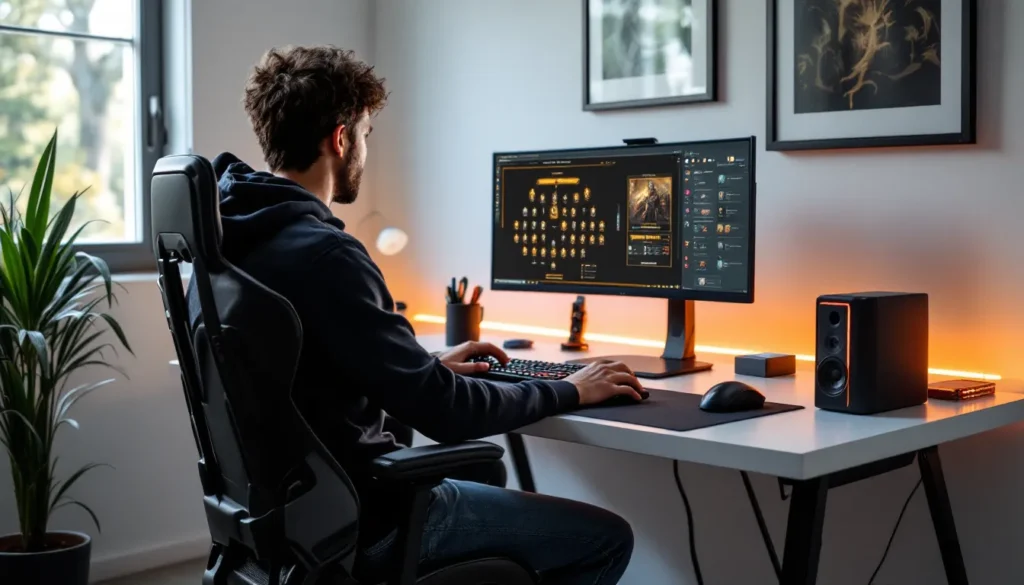
In the fast-paced world of gaming, knowing your frames per second (FPS) can be the difference between a smooth victory and a frustrating defeat. Imagine trying to dodge a fireball while your game stutters like it’s stuck in molasses. Not ideal, right? By showing FPS on your PC, gamers can fine-tune their settings for optimal performance and keep those pesky lag spikes at bay.
Understanding FPS and Its Importance
Frames per second (FPS) measures how many frames your computer displays each second. This metric directly affects visual performance during gaming, enhancing overall experiences and interaction.
What Is FPS?
FPS defines the number of images rendered in one second during a video or game. A higher FPS typically results in smoother motion, while a lower FPS may cause choppy visuals. This rate varies based on hardware capability, game complexity, and graphical settings. Common FPS benchmarks include 30, 60, and 144 FPS, with higher values offering improved gameplay fluidity and responsiveness. Gamers can assess FPS to identify potential performance bottlenecks and optimize their setups for better gameplay experiences.
Why Show FPS on PC?
Displaying FPS on PC proves essential for gamers. This visibility allows for real-time performance analysis, enabling users to detect lag or stuttering quickly. When FPS drops, players can adjust settings, such as reducing graphics quality or disabling resource-heavy features. Monitoring FPS helps maintain a competitive edge, as consistent rates correlate with faster reaction times and smoother gameplay. Additionally, tracking FPS fosters an understanding of how different configurations affect performance, guiding gamers toward optimal settings tailored to their hardware and preferences.
Methods to Show FPS on PC

Multiple methods exist to display frames per second (FPS) on a PC, providing gamers the opportunity to monitor performance during gameplay.
Using Built-in Game Features
Many modern games include built-in options to display FPS. Activating this feature often requires accessing graphics settings or performance menus. Games such as “Counter-Strike: Global Offensive” and “Fortnite” allow users to enable FPS counters directly within the settings. Gamers can easily toggle these features to gain real-time insight into performance without additional tools. Most consoles also have similar functions for FPS display, ensuring consistent monitoring across platforms.
Third-party Software Options
Numerous third-party software solutions can show FPS. Applications like Fraps, MSI Afterburner, and GeForce Experience are popular among gamers. Fraps offers an overlay FPS counter while providing additional performance metrics. MSI Afterburner, commonly used for overclocking, includes an option to display FPS in real-time during gaming sessions. GeForce Experience leverages NVIDIA graphics cards to provide an FPS counter along with optimization suggestions. These options cater to different user preferences and setups, enhancing the gaming experience further.
Step-by-Step Guide for Different Platforms
Monitoring FPS on a PC varies by platform, encompassing different tools for effective gameplay management.
Steam Overlay
Steam provides a simple way to display FPS through its built-in overlay. Users must first access the Steam client and navigate to “Settings.” Once inside, they should select “In-Game” from the menu. Activating the “In-game FPS counter” option enables FPS display in gameplay. Users can choose the corner of the screen for the FPS counter’s placement. After making these adjustments, launching any game through Steam will show the FPS prominently.
NVIDIA GeForce Experience
NVIDIA’s GeForce Experience offers gamers a user-friendly method to track FPS. First, users must download and install the application if it’s not already on their PC. Opening GeForce Experience, they should navigate to the “Settings” gear icon. There, enabling the “In-Game Overlay” option is necessary. Afterward, pressing Alt + Z allows access to the overlay features during gameplay. From this menu, selecting “Performance” activates the FPS counter for precise monitoring.
AMD Radeon Software
AMD Radeon Software provides an efficient way to display FPS for AMD users. Initially, users need to ensure they have the latest version of Radeon Software installed. Opening the application leads to navigating to the “Gaming” tab. From the list of games, selecting the title in use allows for further customization. Activating the “Show Metrics” option under the “Performance” section enables display options for FPS. Users can adjust settings to determine where the FPS counter appears on the screen during gameplay.
Troubleshooting FPS Display Issues
Monitoring FPS can sometimes present challenges. Identifying common problems helps streamline the troubleshooting process.
Common Problems
FPS counters may not display due to various factors. Game settings can disable the in-game FPS overlay. Additionally, outdated drivers can hinder performance metrics. Third-party software might conflict with game settings, causing the FPS display to malfunction. Some games also require specific key bindings for displaying FPS, which might not be configured correctly. Network issues can disrupt performance readings as well, affecting real-time updates. Hardware limitations, like insufficient graphics card capabilities, may also prevent accurate FPS readings. Understanding these issues aids in diagnosing display problems efficiently.
Fixes and Tips
Resolving FPS display issues often involves several steps. First, check in-game settings to confirm that FPS counters are enabled. Updating graphics drivers can often fix display problems. Adjusting settings in third-party software, like MSI Afterburner, might enhance compatibility with games. A keybinding review ensures that necessary functions aren’t overlooked. Running games in windowed mode can sometimes improve performance if full-screen mode causes complications. Finally, verifying system specifications against game requirements ensures hardware capabilities match expectations. These approaches help gamers quickly restore FPS visibility for optimal analysis and gameplay.
Conclusion
Understanding how to display FPS on a PC is crucial for any gamer looking to enhance their performance. By actively monitoring FPS, players can make informed decisions about their settings and configurations. This not only helps in optimizing gameplay but also in identifying any potential issues that could hinder performance.
Utilizing both built-in game features and third-party software provides flexibility in how gamers choose to track their FPS. With the right tools and knowledge, anyone can maintain a competitive edge and enjoy a smoother gaming experience. Ultimately, keeping an eye on FPS is an essential step toward achieving gaming excellence.